
Why restricted-sale logs go unfinished
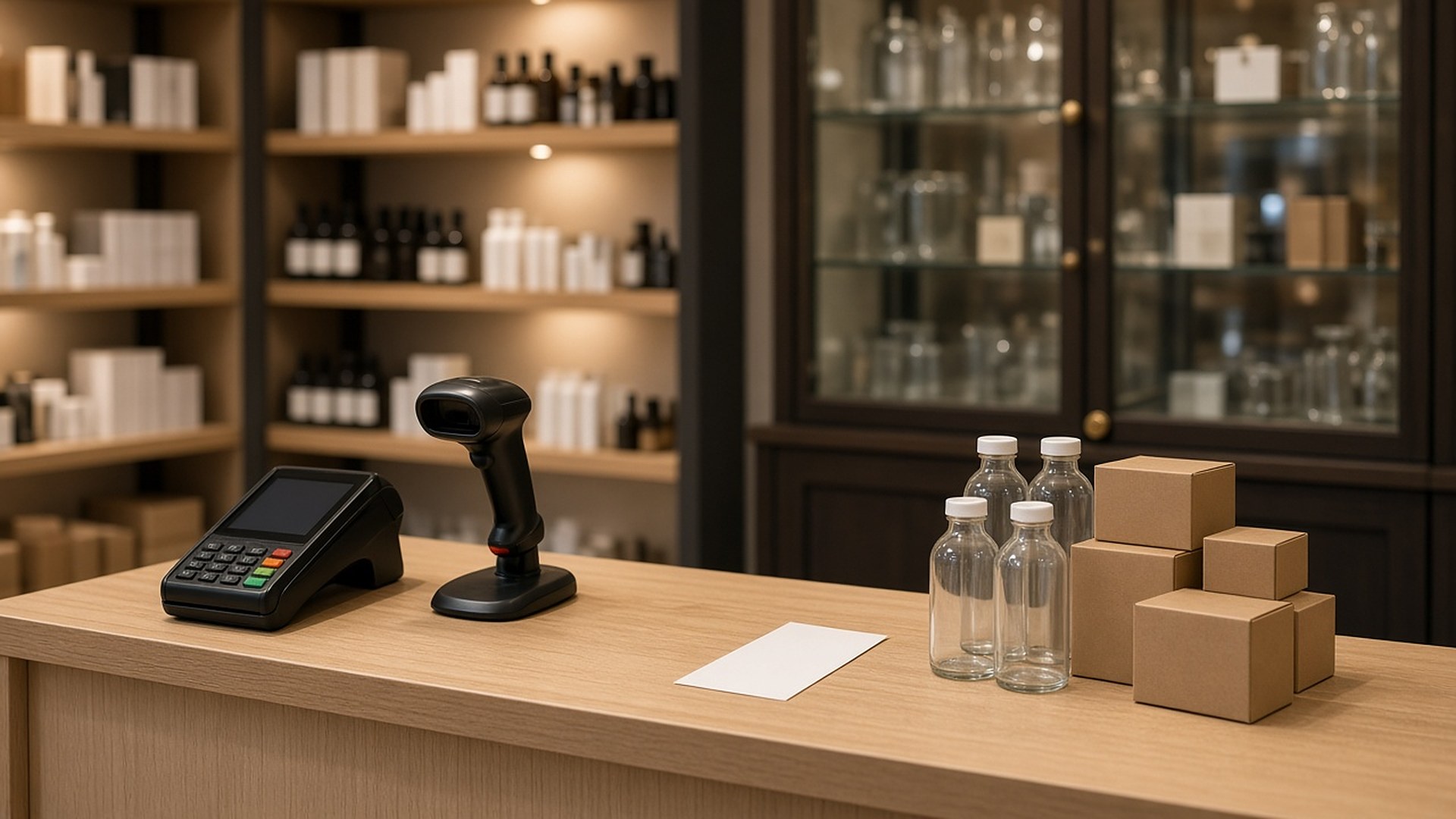
It is Friday evening at a neighborhood store, and the line is six people deep. A customer brings a restricted item to the register. The cashier checks the ID, finishes the sale, and moves on. The store's policy says every restricted sale and every refusal goes in the log, but the log is a clipboard under the counter, and nobody touches it until the line clears. By closing, the cashier remembers three of the seven restricted sales and none of the refusals. When the owner later needs to show what the store's process looks like, the clipboard tells a story nobody can trust.
That scene is an original illustration, not a TwoQM client and not a measured result. The cashier did the right thing at the register. The record just wasn't built for a busy line.
TwoQM has already written about cycle counts that don't halt the register and about seasonal floor changes and staff briefs before opening. This article covers a narrower job: making the log for age-restricted sales fast enough that staff complete it at the register, every time.
This article is about operations, not legal advice. Which products are restricted, the age limits, and what a store must record depend on federal, state, and local rules and on the licenses your store holds. Confirm those requirements with the agency that issues your license or with your own advisor, and build the log around what they require.
Paper logs fail for the same reason most store paperwork fails: they ask for effort at the worst possible moment. When the log is separate from the sale, staff have to stop, find the clipboard, and write while a line waits. Refusals are even easier to skip, because there is no sale to remind anyone.
The fix is not a stricter reminder. It is a log that starts itself when a restricted item is scanned and takes a few taps to finish.
Flag the items once, not at every sale
Start with the product list. Each restricted item in your point-of-sale catalog gets a flag and a category (for example, alcohol, tobacco and nicotine, or another category your rules cover). Your store decides the list; the system just remembers it.
Review the flags whenever you add new products or a vendor changes item codes. A new flavor or pack size that arrives without a flag is the most common way a restricted item slips through without a prompt.
Keep the log to a few fields
A good log entry fits on one screen and can be finished in seconds:
What was scanned. Filled in automatically from the item flag.
ID checked. A yes or no tap, plus how it was checked (visual check or scanner), if your store uses both.
Outcome. Sold, refused, or sale canceled by the customer.
Who and when. Filled in from the register login and clock.
Optional note. One short line for anything unusual, such as a second person in the group who wasn't checked.
Record only what your requirements and policy call for. Don't store ID numbers, birthdates, or ID photos unless a rule you follow actually requires it, and if it does, limit who can see them.
Make refusals a one-tap entry
Refusals matter as much as sales. When a cashier declines a sale, the register should offer a single "refused" button that logs the item, the time, and the cashier, then clears the item from the order. If staff have to leave the sale screen to record a refusal, most refusals will never be recorded.
Review the log on a schedule your team sets
A log nobody reads drifts. Pick a review rhythm that fits your store, and have a manager look at a short summary: restricted sales by shift, refusals, entries with notes, and any restricted sale where the ID field was skipped.
Gaps become coaching conversations, not punishments. The point is to find the shift where the prompt was dismissed or the register where a flag is missing, and fix the process.
Where automation and connected systems help
Business automation can do most of the work: start a log entry when a flagged item is scanned, require the ID field before the sale completes, add the cashier and time automatically, and send the manager a summary on your chosen schedule. It can also list new catalog items that were added without a restricted flag.
Where your point-of-sale system allows it, connected systems work can pull item flags and sale data into the log without retyping, so the log and the sales record agree; what is possible is confirmed during scoping. When your register can't prompt the way you need, custom software can provide a simple companion screen at the counter.
Bilingual stores can show the prompts and buttons in English and Spanish, so new staff are never guessing what a field means.
Where AI helps, and where it stops
AI integrations can draft the manager's weekly summary in plain language, point out shifts with unusual patterns, and draft a short bilingual refresher for staff.
AI does not decide whether a customer is old enough, approve a sale, or mark an entry as reviewed. People make those calls, and a manager reviews every flagged gap.
Where to start this week
Pull your list of restricted items and check that every one is flagged in your point-of-sale catalog. Then time how long it takes a cashier to complete one log entry today. If it takes longer than the sale, that is the step to fix first.
TwoQM builds automation, connected systems, and custom software for retail and ecommerce businesses. If your restricted-sale log is a clipboard under the counter, TwoQM can scope a register-side workflow around the tools you already use. Pricing explains how business apps, systems, and custom software are scoped.
Describe Your Restricted-Sale Log Workflow · Explore TwoQM business automation